
Image Converter
Free online image converter. Convert images between JPG, PNG and WebP in bulk, set quality and background color, and download as ZIP. No upload, no sign-up.
Runs in your browser — your files are not uploaded.
Convert pictures between JPG, PNG and WebP with this free image converter. Change one image or many at once — PNG to JPG, JPG to WebP, WebP to PNG and more — then download them individually or together as a ZIP.
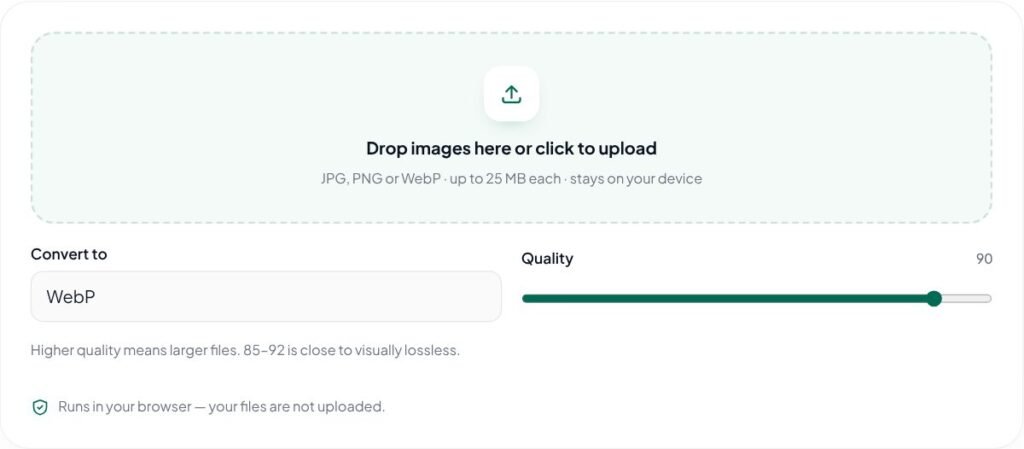
Key features of the Image Converter
- Convert JPG, PNG and WebP in any direction
- Batch conversion with ZIP download
- Quality control for JPG and WebP
- Background color for transparent images
- Runs in your browser — nothing is uploaded to a server
How to use the Image Converter
- Add one or more JPG, PNG or WebP images.
- Choose the format you want: JPG, PNG or WebP.
- For JPG and WebP, set the quality. For JPG, choose a background color to replace any transparency.
- Download each file, or all of them together as a ZIP.
Why use the Image Converter?
Different jobs need different formats. WebP is usually the smallest option for websites, JPG is the safest choice for email, print services and older software, and PNG keeps transparency and sharp edges for logos and screenshots. Converting in your browser avoids installing software and keeps client files private, because nothing is uploaded. Batch conversion with a single ZIP download saves time when you are preparing a whole product catalog or a set of blog images.
Convert screenshots to JPG for email, photos to WebP for faster websites, or WebP downloads back to PNG for design software and print.
Tips for best results with the Image Converter
- Convert to WebP for websites — files are usually much smaller than JPG or PNG.
- Keep PNG for logos and graphics that need transparency or sharp edges.
- When converting transparent images to JPG, choose a background color that matches your design.
- Convert copies, and keep the originals in their first format.
Learn more: read our guide on SEO checklist for new websites, explore all free online tools, or see Google’s image SEO best practices.
Image Converter FAQs
What happens to transparency when I convert to JPG?
JPG does not support transparency, so transparent areas are filled with the background color you choose (white by default).
Will converting JPG to PNG improve quality?
No. It only changes the file format. The image looks the same, but the PNG file is usually larger.
My browser does not create WebP files. Why?
A few older browsers can display WebP but cannot create it. The tool tells you and saves PNG instead; updating your browser usually fixes this.
Can I convert HEIC or GIF files?
This tool handles JPG, PNG and WebP. Animated GIFs would lose their animation, and HEIC support varies by browser, so they are not accepted.
Can I convert many images at once?
Yes. Add several files, choose the output format once and download them individually or together as a ZIP.
Does converting change the image size in pixels?
No. The converter keeps the original width and height; only the file format and, for JPG and WebP, the quality change.