
Image Compressor Tool
Free online image compressor. Reduce JPG, PNG and WebP file size with quality control, before/after preview and ZIP download. No upload, no sign-up.
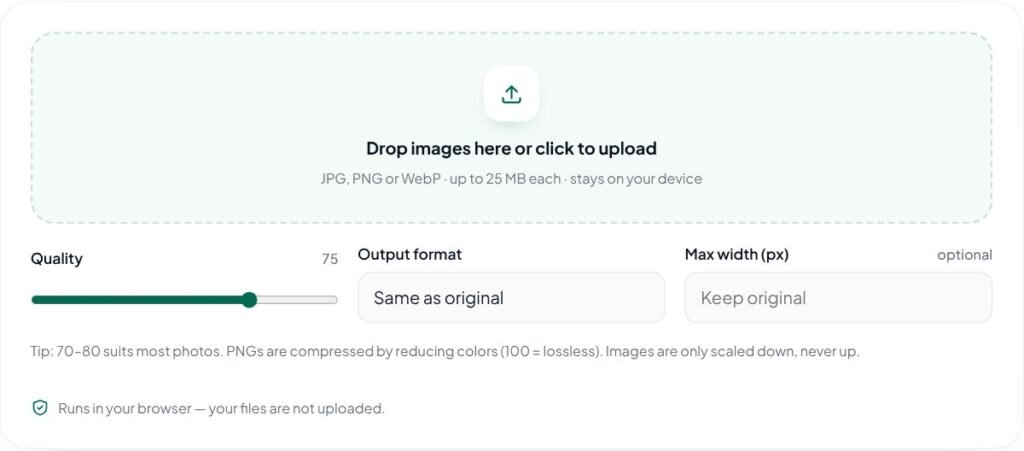
Tip: 70–80 suits most photos. Images are only scaled down, never up.
Runs in your browser — your files are not uploaded.
This free image compressor reduces the file size of JPG, PNG and WebP images while keeping them sharp. Compress one photo or a whole batch, compare the result with the before/after slider, and download everything as a ZIP — without uploading a single file.
Key features of the Image Compressor
- Compress JPG, PNG and WebP in bulk
- Quality slider with live before/after comparison
- Smart PNG compression that keeps transparency
- Convert to WebP and set a maximum width
- Runs in your browser — nothing is uploaded to a server
How to use the Image Compressor
- Drop your JPG, PNG or WebP images into the upload area, or click to choose them. You can add several at once.
- Set the quality (70–80 is a good starting point for photos), choose an output format and, if needed, a maximum width.
- Compare the original and compressed image with the preview slider, and check the size saved for each file. Click any file in the list to preview it.
- Download images one by one, or use “Download all (ZIP)” to save them together.
Why use the Image Compressor?
Large images are one of the most common reasons a page feels slow, especially on mobile data. Compressing photos before you upload them to WordPress, an online store or an email campaign keeps pages lighter without a visible drop in quality for most uses. Resizing to the width you actually display — for example 1600px for a full-width blog image — often saves more than changing quality alone. This compressor runs in your browser, so your files are not uploaded to any server. That makes it safe for client work and unpublished designs.
Use it to compress images for WordPress blogs, online stores, email newsletters and social media. Smaller images load faster, improve Core Web Vitals and save mobile data for your visitors.
Tips for best results with the Image Compressor
- Resize first: set a max width such as 1600px for blog images — it usually saves more than lowering quality.
- Start at quality 75 and compare with the slider; only go lower if you can’t see a difference.
- Use WebP for websites and JPG when a client or print shop needs a universal format.
- Keep your original files — compressed copies are for publishing, not for archiving.
Learn more: read our guide on SEO checklist for new websites, explore all free online tools, or see Google’s image SEO best practices.
Image Compressor FAQs
Are my images uploaded to your server?
No. Compression happens inside your browser using the Canvas API. The files never leave your device, and closing the page clears them.
Which quality setting should I use?
For photos, 70–80 usually gives a good balance between size and appearance. Graphics with text or sharp edges may need 85 or higher. Compare the results and adjust.
How are PNG files compressed?
PNGs are compressed by reducing the number of colors (smart color quantization, the same idea used by popular PNG optimizers), and transparency is kept. Lower quality means fewer colors and a smaller file. Set quality to 100 for lossless PNG. For photos saved as PNG, WebP or JPG will usually be much smaller.
Should I use WebP?
WebP is supported by all current major browsers and by WordPress (since version 5.8), and is usually smaller than JPG at similar quality. Keep a JPG or PNG copy if you need to send files to older software or a print shop.
Does it keep EXIF data such as location?
No. Re-encoding in the browser removes metadata such as camera details and GPS location, which is usually good for privacy.
How much can I reduce an image’s file size?
Photos from phones and cameras often shrink by 60–80% with no visible change, especially when you also set a maximum width. Screenshots and simple graphics saved as PNG often shrink by half or more with smart color reduction.
Can I compress many images at once?
Yes. Drop as many JPG, PNG or WebP files as you like, adjust the settings once, and download them one by one or all together as a ZIP file.